# Connecter un Windows Server à un serveur NTP

Probleme d'heure sur le windows server

[![image.png](https://know.app.slaunay.com/uploads/images/gallery/2024-06/scaled-1680-/1lOQ0S3gas7XygDe-image.png)](https://know.app.slaunay.com/uploads/images/gallery/2024-06/1lOQ0S3gas7XygDe-image.png)

```bash
w32tm /config /manualpeerlist:"ch.pool.ntp.org" /syncfromflags:manual /reliable:YES /update
```

[![image.png](https://know.app.slaunay.com/uploads/images/gallery/2024-06/scaled-1680-/KUsrbobPo0Efvunj-image.png)](https://know.app.slaunay.com/uploads/images/gallery/2024-06/KUsrbobPo0Efvunj-image.png)

[![image.png](https://know.app.slaunay.com/uploads/images/gallery/2024-06/scaled-1680-/QFogLy72PnMkINZI-image.png)](https://know.app.slaunay.com/uploads/images/gallery/2024-06/QFogLy72PnMkINZI-image.png)

<div class="flex-shrink-0 flex flex-col relative items-end" id="bkmrk--3"><div><div class="pt-0.5 juice:pt-0"><div class="gizmo-bot-avatar flex h-6 w-6 items-center justify-center overflow-hidden rounded-full juice:h-8 juice:w-8"><div class="relative p-1 rounded-sm flex items-center justify-center bg-token-main-surface-primary text-token-text-primary h-8 w-8"><svg class="icon-md" fill="none" height="41" role="img" viewbox="0 0 41 41" width="41" xmlns="http://www.w3.org/2000/svg"></svg>  
</div></div></div></div></div>Pour synchroniser l'heure de votre serveur Windows avec un serveur NTP, suivez ces étapes :

<div class="group/conversation-turn relative flex w-full min-w-0 flex-col agent-turn" id="bkmrk-ouvrir-l%27invite-de-c"><div class="flex-col gap-1 md:gap-3"><div class="flex flex-grow flex-col max-w-full"><div class="min-h-[20px] text-message flex flex-col items-start whitespace-pre-wrap break-words [.text-message+&]:mt-5 juice:w-full juice:items-end overflow-x-auto gap-2" data-message-author-role="assistant" data-message-id="3b9bbf63-35fa-4579-bd99-c6edf628d4d7" dir="auto"><div class="flex w-full flex-col gap-1 juice:empty:hidden juice:first:pt-[3px]"><div class="markdown prose w-full break-words dark:prose-invert light">1. **Ouvrir l'Invite de Commandes en tant qu'Administrateur :**
    
    
    - Cliquez sur le menu Démarrer.
    - Tapez `cmd` dans la barre de recherche.
    - Faites un clic droit sur "Invite de commandes" et sélectionnez "Exécuter en tant qu'administrateur".
2. **Configurer le serveur NTP :**
    
    
    - Tapez la commande suivante pour configurer votre serveur NTP. Remplacez `pool.ntp.org` par le serveur NTP de votre choix. <div class="dark bg-gray-950 rounded-md border-[0.5px] border-token-border-medium"><div class="flex items-center relative text-token-text-secondary bg-token-main-surface-secondary px-4 py-2 text-xs font-sans justify-between rounded-t-md">sh <div class="flex items-center"><span class="" data-state="closed"><button class="flex gap-1 items-center"><svg class="icon-sm" fill="none" height="24" viewbox="0 0 24 24" width="24" xmlns="http://www.w3.org/2000/svg"></svg>Copier le code</button></span></div></div><div class="overflow-y-auto p-4" dir="ltr">`w32tm /config /manualpeerlist:<span class="hljs-string">"pool.ntp.org"</span> /syncfromflags:manual /reliable:YES /update`</div></div>
3. **Redémarrer le service de temps Windows :**
    
    
    - Après avoir configuré le serveur NTP, redémarrez le service de temps Windows pour que les modifications prennent effet. <div class="dark bg-gray-950 rounded-md border-[0.5px] border-token-border-medium"><div class="flex items-center relative text-token-text-secondary bg-token-main-surface-secondary px-4 py-2 text-xs font-sans justify-between rounded-t-md">sh <div class="flex items-center"><span class="" data-state="closed"><button class="flex gap-1 items-center"><svg class="icon-sm" fill="none" height="24" viewbox="0 0 24 24" width="24" xmlns="http://www.w3.org/2000/svg"></svg>Copier le code</button></span></div></div><div class="overflow-y-auto p-4" dir="ltr">`net stop w32timenet start w32time`</div><div class="overflow-y-auto p-4" dir="ltr">  
        </div></div>[![image.png](https://know.app.slaunay.com/uploads/images/gallery/2024-06/scaled-1680-/bV7irNBoFA4b8jhv-image.png)](https://know.app.slaunay.com/uploads/images/gallery/2024-06/bV7irNBoFA4b8jhv-image.png)
        
        <div class="dark bg-gray-950 rounded-md border-[0.5px] border-token-border-medium"><div class="overflow-y-auto p-4" dir="ltr">  
        </div><div class="overflow-y-auto p-4" dir="ltr">  
        </div></div>[![image.png](https://know.app.slaunay.com/uploads/images/gallery/2024-06/scaled-1680-/dKpJ1uKdWGl5PtyJ-image.png)](https://know.app.slaunay.com/uploads/images/gallery/2024-06/dKpJ1uKdWGl5PtyJ-image.png)
        
        <div class="dark bg-gray-950 rounded-md border-[0.5px] border-token-border-medium"><div class="overflow-y-auto p-4" dir="ltr">  
        </div></div>
4. **Forcer la synchronisation :**
    
    
    - Vous pouvez forcer la synchronisation immédiate en utilisant la commande suivante : <div class="dark bg-gray-950 rounded-md border-[0.5px] border-token-border-medium"><div class="flex items-center relative text-token-text-secondary bg-token-main-surface-secondary px-4 py-2 text-xs font-sans justify-between rounded-t-md">sh <div class="flex items-center"><span class="" data-state="closed"><button class="flex gap-1 items-center"><svg class="icon-sm" fill="none" height="24" viewbox="0 0 24 24" width="24" xmlns="http://www.w3.org/2000/svg"></svg>Copier le code</button></span></div></div><div class="overflow-y-auto p-4" dir="ltr">`w32tm /resync`</div><div class="overflow-y-auto p-4" dir="ltr">  
        </div></div>[![image.png](https://know.app.slaunay.com/uploads/images/gallery/2024-06/scaled-1680-/IYqEJ0qX0ln00zub-image.png)](https://know.app.slaunay.com/uploads/images/gallery/2024-06/IYqEJ0qX0ln00zub-image.png)
        
        <div class="dark bg-gray-950 rounded-md border-[0.5px] border-token-border-medium"><div class="overflow-y-auto p-4" dir="ltr">  
        </div><div class="overflow-y-auto p-4" dir="ltr">  
        </div></div>
5. **Vérifier la configuration :**
    
    
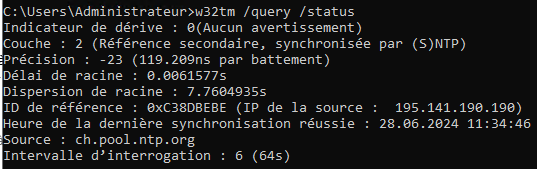
    - Pour vérifier que votre serveur est correctement configuré pour utiliser le serveur NTP, vous pouvez utiliser la commande : <div class="dark bg-gray-950 rounded-md border-[0.5px] border-token-border-medium"><div class="flex items-center relative text-token-text-secondary bg-token-main-surface-secondary px-4 py-2 text-xs font-sans justify-between rounded-t-md">sh <div class="flex items-center"><span class="" data-state="closed"><button class="flex gap-1 items-center"><svg class="icon-sm" fill="none" height="24" viewbox="0 0 24 24" width="24" xmlns="http://www.w3.org/2000/svg"></svg>Copier le code</button></span></div></div><div class="overflow-y-auto p-4" dir="ltr">`w32tm /query /status`</div><div class="overflow-y-auto p-4" dir="ltr">  
        </div></div>[![image.png](https://know.app.slaunay.com/uploads/images/gallery/2024-06/scaled-1680-/wcsw9vhY3GngzzDu-image.png)](https://know.app.slaunay.com/uploads/images/gallery/2024-06/wcsw9vhY3GngzzDu-image.png)
        
        <div class="dark bg-gray-950 rounded-md border-[0.5px] border-token-border-medium"><div class="overflow-y-auto p-4" dir="ltr">  
        </div><div class="overflow-y-auto p-4" dir="ltr">  
        </div></div>

</div></div></div></div></div></div>[![image.png](https://know.app.slaunay.com/uploads/images/gallery/2024-06/scaled-1680-/4WAWoN6Q36lhrSRp-image.png)](https://know.app.slaunay.com/uploads/images/gallery/2024-06/4WAWoN6Q36lhrSRp-image.png)