# Tutoriel

# Activation de Windows Serveur

[![image.png](https://know.app.slaunay.com/uploads/images/gallery/2023-07/scaled-1680-/vSkQHI7qY02dMQ7d-image.png)](https://know.app.slaunay.com/uploads/images/gallery/2023-07/vSkQHI7qY02dMQ7d-image.png)

1. DISM /online /Get-CurrentEdition

[![image.png](https://know.app.slaunay.com/uploads/images/gallery/2023-07/scaled-1680-/2zUNnb5kX23qVG8C-image.png)](https://know.app.slaunay.com/uploads/images/gallery/2023-07/2zUNnb5kX23qVG8C-image.png)

2\. DISM /online /Get-TargetEditions

[![image.png](https://know.app.slaunay.com/uploads/images/gallery/2023-07/scaled-1680-/3lHK9lHYKejhU0yD-image.png)](https://know.app.slaunay.com/uploads/images/gallery/2023-07/3lHK9lHYKejhU0yD-image.png)

3\. DISM /online /Set-Edition:\[TARGET EDITION\] /ProductKey:\[KEY\] /AcceptEula

# Etendre une partition sous Ubuntu

1- Regarder les partitions

fdisk -l

[![image.png](https://know.app.slaunay.com/uploads/images/gallery/2023-07/scaled-1680-/SOqhgSlPZxqACu74-image.png)](https://know.app.slaunay.com/uploads/images/gallery/2023-07/SOqhgSlPZxqACu74-image.png)

2- Regarder l'utilisation des partitions

df -h

[![image.png](https://know.app.slaunay.com/uploads/images/gallery/2023-07/scaled-1680-/2WKT0Va8lKPpd8ja-image.png)](https://know.app.slaunay.com/uploads/images/gallery/2023-07/2WKT0Va8lKPpd8ja-image.png)

3- Allouer la totalité de l'espace libre

(exemple pour la partition "ubuntu--vg-ubuntu--lv")

Pour ajouter à la partition, l'espace libre non alloué

lvresize -l +100%FREE /dev/mapper/ubuntu--vg-ubuntu--lv

[![image.png](https://know.app.slaunay.com/uploads/images/gallery/2023-07/scaled-1680-/uQZTbZHGYFi8gjDl-image.png)](https://know.app.slaunay.com/uploads/images/gallery/2023-07/uQZTbZHGYFi8gjDl-image.png)

4- Redimensionner le système de fichiers

resize2fs /dev/mapper/ubuntu--vg-ubuntu--lv

[![image.png](https://know.app.slaunay.com/uploads/images/gallery/2023-07/scaled-1680-/zMnVrTmjdfAyAAnR-image.png)](https://know.app.slaunay.com/uploads/images/gallery/2023-07/zMnVrTmjdfAyAAnR-image.png)

5- Controle

df -h

[![image.png](https://know.app.slaunay.com/uploads/images/gallery/2023-07/scaled-1680-/ktTT03nd6lobjGQX-image.png)](https://know.app.slaunay.com/uploads/images/gallery/2023-07/ktTT03nd6lobjGQX-image.png)

6- reboot

TOP TUTO

[https://247-it.io/ubuntu-etendre-partition-disque-lvm/](https://247-it.io/ubuntu-etendre-partition-disque-lvm/)

# Ajouter un compte administrateur AD sur un PC/VM en local

Une fois l'utilisateur crée dans l'AD

Aller dans le Panneau de Configuration du PC/VM

[![image.png](https://know.app.slaunay.com/uploads/images/gallery/2023-07/scaled-1680-/mH1b57tSeyD0ZeFh-image.png)](https://know.app.slaunay.com/uploads/images/gallery/2023-07/mH1b57tSeyD0ZeFh-image.png)

Se connecter avec le compte Administrateur LOCAL de la machine

[![image.png](https://know.app.slaunay.com/uploads/images/gallery/2023-07/scaled-1680-/1hc4SFsMLHSyZ9IW-image.png)](https://know.app.slaunay.com/uploads/images/gallery/2023-07/1hc4SFsMLHSyZ9IW-image.png)

[![image.png](https://know.app.slaunay.com/uploads/images/gallery/2023-07/scaled-1680-/3ECajfOYgwErMvOd-image.png)](https://know.app.slaunay.com/uploads/images/gallery/2023-07/3ECajfOYgwErMvOd-image.png)

ajouter les utilisateurs de l'AD

(meme les comptes administrateur)

[![image.png](https://know.app.slaunay.com/uploads/images/gallery/2023-07/scaled-1680-/TILVyoKM2hC7BAzk-image.png)](https://know.app.slaunay.com/uploads/images/gallery/2023-07/TILVyoKM2hC7BAzk-image.png)

[![image.png](https://know.app.slaunay.com/uploads/images/gallery/2023-07/scaled-1680-/CxZy40ArlWrKqrwW-image.png)](https://know.app.slaunay.com/uploads/images/gallery/2023-07/CxZy40ArlWrKqrwW-image.png)

Ajouter autant de compte que nécessaire

[![image.png](https://know.app.slaunay.com/uploads/images/gallery/2023-07/scaled-1680-/1t7heqSjchCEdHc1-image.png)](https://know.app.slaunay.com/uploads/images/gallery/2023-07/1t7heqSjchCEdHc1-image.png)

Redémarrer le PC/VM

(ne pas oublier de le faire a chaque utilisateur créer dans l'AD)

# Mettre une IP FIXE sur un container Docker Compose

Exemple de docker compose sans l'IP FIXE

```bash
nano docker-compose.yml
```

[![Capture d’écran 2023-08-09 à 15.00.42.png](https://know.app.slaunay.com/uploads/images/gallery/2023-08/scaled-1680-/ABc5sHoAYfpl9kJG-capture-decran-2023-08-09-a-15-00-42.png)](https://know.app.slaunay.com/uploads/images/gallery/2023-08/ABc5sHoAYfpl9kJG-capture-decran-2023-08-09-a-15-00-42.png)

Actuellement le container docker compose utilise le network: traefik\_web

[![image.png](https://know.app.slaunay.com/uploads/images/gallery/2023-08/scaled-1680-/JwFzTxQXIOMfdDfs-image.png)](https://know.app.slaunay.com/uploads/images/gallery/2023-08/JwFzTxQXIOMfdDfs-image.png)

Contrôle des networks docker

```bash
docker network ls
```

[![image.png](https://know.app.slaunay.com/uploads/images/gallery/2023-08/scaled-1680-/OzEPRziu3oVk2kSw-image.png)](https://know.app.slaunay.com/uploads/images/gallery/2023-08/OzEPRziu3oVk2kSw-image.png)

Celui utilisé pour le container est "traefik\_web"

Contrôle de la plage IP du network en question

```bash
docker network inspect 7f687df66ec3 
```

[![image.png](https://know.app.slaunay.com/uploads/images/gallery/2023-08/scaled-1680-/MyBHYJAPcxp9V1L4-image.png)](https://know.app.slaunay.com/uploads/images/gallery/2023-08/MyBHYJAPcxp9V1L4-image.png)

Actuellement le reseau "traefik\_web" est en 172.18.0.X/16

Ajoutez une IP FIXE dans le docker-compose

Stopper le container

```bash
docker-compose down
```

En fonction du docker-compose, modifier le

```yml
      - traefik_web
```

par

```yml
      traefik_web:
```

[![image.png](https://know.app.slaunay.com/uploads/images/gallery/2023-10/scaled-1680-/ULLVjS8TXSJ6kgnM-image.png)](https://know.app.slaunay.com/uploads/images/gallery/2023-10/ULLVjS8TXSJ6kgnM-image.png)

Ajoutez l'IP FIXE avec un "tab" en plus

```yml
        ipv4_address: x.x.x.x
```

Exemple

```yml
        ipv4_address: 172.18.0.100
```

Exemple total

```yml
    networks:
      traefik_web:
        ipv4_address: 172.18.0.100
```

[![image.png](https://know.app.slaunay.com/uploads/images/gallery/2023-08/scaled-1680-/3QkyyVBN6dO17IK7-image.png)](https://know.app.slaunay.com/uploads/images/gallery/2023-08/3QkyyVBN6dO17IK7-image.png)

Démarrer le container

```bash
docker-compose up -d
```

# openVPN erreur UNKNOWN/UNSUPPORTED OPTIONS

Aller dans le fichier .ovpn

Commenter la ligne "pull" avec un #

[![image.png](https://know.app.slaunay.com/uploads/images/gallery/2023-08/scaled-1680-/wzsbwHcjujz9kIsC-image.png)](https://know.app.slaunay.com/uploads/images/gallery/2023-08/wzsbwHcjujz9kIsC-image.png)

[![image.png](https://know.app.slaunay.com/uploads/images/gallery/2023-08/scaled-1680-/4EZoxEzEhMCYtCqR-image.png)](https://know.app.slaunay.com/uploads/images/gallery/2023-08/4EZoxEzEhMCYtCqR-image.png)

# Ajouter un équipement Unifi sur le controleur Cloud

1- Lancer un scan de reseau pour avoir l’ip de l’antenne WiFi

[![image.png](https://know.app.slaunay.com/uploads/images/gallery/2023-09/scaled-1680-/FNg3JYsnwdxHNn7E-image.png)](https://know.app.slaunay.com/uploads/images/gallery/2023-09/FNg3JYsnwdxHNn7E-image.png)

2- (Exemple : je vais configurer l’antenne WiFi : D0:21:F9:39:B3:C8)

L’adresse IP de l’antenne D0:21:F9:39:B3:C8 est le 192.168.2.53

3- Ouvrir « CMD (invite de commande) »

[![image.png](https://know.app.slaunay.com/uploads/images/gallery/2023-09/scaled-1680-/hntMXuQK0HhZDolI-image.png)](https://know.app.slaunay.com/uploads/images/gallery/2023-09/hntMXuQK0HhZDolI-image.png)

4- Se connecter en « SSH » a l’antenne WiFi avec la commande suivante :

```bash
ssh ubnt@[IP DE L’ANTENNE WIFI]
```

Le user par défaut est : <span style="background-color: rgb(224, 62, 45);">ubnt</span>

Le mot de passe par défaut est : <span style="background-color: rgb(224, 62, 45);">ubnt</span>

[![image.png](https://know.app.slaunay.com/uploads/images/gallery/2023-09/scaled-1680-/ygbqBT2eqL9LglgG-image.png)](https://know.app.slaunay.com/uploads/images/gallery/2023-09/ygbqBT2eqL9LglgG-image.png)

5- Une fois connecté vous aurez cette interface :

[![image.png](https://know.app.slaunay.com/uploads/images/gallery/2023-09/scaled-1680-/dJvLvxzX3PogeC2H-image.png)](https://know.app.slaunay.com/uploads/images/gallery/2023-09/dJvLvxzX3PogeC2H-image.png)

6- Taper la commande « info » pour contrôler l’adresse mac de l’antenne WiFi

[![image.png](https://know.app.slaunay.com/uploads/images/gallery/2023-09/scaled-1680-/1FleAyPB1JbHpLkZ-image.png)](https://know.app.slaunay.com/uploads/images/gallery/2023-09/1FleAyPB1JbHpLkZ-image.png)

7- Une fois l’adresse mac contrôlé,

Taper la commande

```bash
set-inform http://unifi.eggtelsa.net:8080/inform
```

[![image.png](https://know.app.slaunay.com/uploads/images/gallery/2023-09/scaled-1680-/Xyd3rLMu8pKaQs5X-image.png)](https://know.app.slaunay.com/uploads/images/gallery/2023-09/Xyd3rLMu8pKaQs5X-image.png)

8- Contrôler le status de l’antenne WiFi, taper la commande

```bash
info
```

[![image.png](https://know.app.slaunay.com/uploads/images/gallery/2023-09/scaled-1680-/R80zb3h6fVIpYmvy-image.png)](https://know.app.slaunay.com/uploads/images/gallery/2023-09/R80zb3h6fVIpYmvy-image.png)

9- Connectez-vous sur le contrôleur UniFi [https://unifi.eggtelsa.net:8443/](https://unifi.eggtelsa.net:8443/)

Sélectionner le bon site

[![image.png](https://know.app.slaunay.com/uploads/images/gallery/2023-09/scaled-1680-/DgxY541HypjsAb41-image.png)](https://know.app.slaunay.com/uploads/images/gallery/2023-09/DgxY541HypjsAb41-image.png)

10- Allez dans « UniFi Devices »

[![image.png](https://know.app.slaunay.com/uploads/images/gallery/2023-09/scaled-1680-/xFCEXbPJoJqmkoqe-image.png)](https://know.app.slaunay.com/uploads/images/gallery/2023-09/xFCEXbPJoJqmkoqe-image.png)

11- Contrôler l’adresse mac de l’antenne WiFi en cliquant sur l’antenne et ensuite cliquer sur « <span style="text-decoration: underline;">Adopt Device</span> »

[![image.png](https://know.app.slaunay.com/uploads/images/gallery/2023-09/scaled-1680-/J4vtqedZ1751WND2-image.png)](https://know.app.slaunay.com/uploads/images/gallery/2023-09/J4vtqedZ1751WND2-image.png)

# Modifier le nom d'un commutateur virtuel "vSwitch" sous ESXi

**<span style="color: rgb(224, 62, 45);">Attention cette configuration comporte des risques en cas de problème au niveau du fichier de configuration.</span>**

**<span style="color: rgb(224, 62, 45);">Le serveur n'aura plus du tout d'accès au réseau, en cas de problème afin de rétablir le réseau sur le serveur il faudra réinitialiser la configuration de l'ESXi.</span>**

**<span style="color: rgb(224, 62, 45);"> Cette manipulation supprimera les données de configuration (configuration réseau, utilisateur et autes)</span>**

**<span style="color: rgb(224, 62, 45);">Mais elle ne supprimera pas les données des machines virtuelles.</span>**

**<span style="color: rgb(224, 62, 45);">Il faudra les rajouter manuellement depuis les emplacement dans les disques durs du serveur ESXi</span>**

1- Se connecter avec un utilisateur administrateur à ESXi

[![image.png](https://know.app.slaunay.com/uploads/images/gallery/2023-09/scaled-1680-/1jcSp0WM8GLPHZF9-image.png)](https://know.app.slaunay.com/uploads/images/gallery/2023-09/1jcSp0WM8GLPHZF9-image.png)

2- Activer le SSH et le ESXi Shell

[![image.png](https://know.app.slaunay.com/uploads/images/gallery/2023-09/scaled-1680-/by1yNujMXXgMxdnl-image.png)](https://know.app.slaunay.com/uploads/images/gallery/2023-09/by1yNujMXXgMxdnl-image.png)

Une fois activée:

[![image.png](https://know.app.slaunay.com/uploads/images/gallery/2023-09/scaled-1680-/lB8rUPU8KpPrPNDC-image.png)](https://know.app.slaunay.com/uploads/images/gallery/2023-09/lB8rUPU8KpPrPNDC-image.png)

3- Se connecter en SSH au serveur ESXi via utilisateur administrateur

[![image.png](https://know.app.slaunay.com/uploads/images/gallery/2023-09/scaled-1680-/26cPR2sL98vQbR3G-image.png)](https://know.app.slaunay.com/uploads/images/gallery/2023-09/26cPR2sL98vQbR3G-image.png)

4- Afficher la configuration du réseau actuel du vSwitch de l'ESXi

```bash
configstorecli config current get -c esx -g network_vss -k switches
```

[![image.png](https://know.app.slaunay.com/uploads/images/gallery/2023-09/scaled-1680-/2rF76sV76Ju5frif-image.png)](https://know.app.slaunay.com/uploads/images/gallery/2023-09/2rF76sV76Ju5frif-image.png)

5- Exporter la configuration actuelle dans un fichier JSON

```bash
configstorecli config current get -c esx -g network_vss -k switches > vswitch.json
```

[![image.png](https://know.app.slaunay.com/uploads/images/gallery/2023-09/scaled-1680-/HmwrMwkp0ruWZECi-image.png)](https://know.app.slaunay.com/uploads/images/gallery/2023-09/HmwrMwkp0ruWZECi-image.png)

6- Contrôler que le fichier a bien été créé

```bash
ls
```

[![image.png](https://know.app.slaunay.com/uploads/images/gallery/2023-09/scaled-1680-/CaVnKTr2E0ErQJuV-image.png)](https://know.app.slaunay.com/uploads/images/gallery/2023-09/CaVnKTr2E0ErQJuV-image.png)

7- Ouvrir le fichier "vswitch.json"

```bash
vi vswitch.json
```

[![image.png](https://know.app.slaunay.com/uploads/images/gallery/2023-09/scaled-1680-/nkUe1d2pXUOe6eU1-image.png)](https://know.app.slaunay.com/uploads/images/gallery/2023-09/nkUe1d2pXUOe6eU1-image.png)

8- Rechercher la ligne qui correspond au vSwitch à renommer

[![image.png](https://know.app.slaunay.com/uploads/images/gallery/2023-09/scaled-1680-/Zgch7uk8WrLzmaQ8-image.png)](https://know.app.slaunay.com/uploads/images/gallery/2023-09/Zgch7uk8WrLzmaQ8-image.png)

9- Appuyez sur la touche "ins" afin de pouvoir ajouter du texte

[![image.png](https://know.app.slaunay.com/uploads/images/gallery/2023-09/scaled-1680-/YjVxtJ1Loq35VC8L-image.png)](https://know.app.slaunay.com/uploads/images/gallery/2023-09/YjVxtJ1Loq35VC8L-image.png)

10- Une fois la modification effectuée rappuyez sur la touche "ins"

[![image.png](https://know.app.slaunay.com/uploads/images/gallery/2023-09/scaled-1680-/t7vS03JX7Mfs5rw6-image.png)](https://know.app.slaunay.com/uploads/images/gallery/2023-09/t7vS03JX7Mfs5rw6-image.png)

11- Ensuite sauvegarder les données et fermer le document

Via la touche "ESC" ensuite ":" et tapper "wq!"

[![image.png](https://know.app.slaunay.com/uploads/images/gallery/2023-09/scaled-1680-/x07cUODyhMvrUeXj-image.png)](https://know.app.slaunay.com/uploads/images/gallery/2023-09/x07cUODyhMvrUeXj-image.png)

12- Charger la nouvelle configuration à partir du fichier "JSON" modifié

```bash
configstorecli config current set --overwrite -c esx -g network_vss -k switches -j vswitch.json
```

[![image.png](https://know.app.slaunay.com/uploads/images/gallery/2023-09/scaled-1680-/JkLKzKDqT7YzwFvU-image.png)](https://know.app.slaunay.com/uploads/images/gallery/2023-09/JkLKzKDqT7YzwFvU-image.png)

13- redémarrez le serveur ESXi

```bash
reboot
```

[![image.png](https://know.app.slaunay.com/uploads/images/gallery/2023-09/scaled-1680-/HwjnQSbuwGX5Y6wX-image.png)](https://know.app.slaunay.com/uploads/images/gallery/2023-09/HwjnQSbuwGX5Y6wX-image.png)

# Ajouter un nouvel utilisateur administrateur sur ESXi et restreindre l'utilisateur root

1- Crée un nouvel utilisateur

[![image.png](https://know.app.slaunay.com/uploads/images/gallery/2023-09/scaled-1680-/r0rVysmQMkpkgypW-image.png)](https://know.app.slaunay.com/uploads/images/gallery/2023-09/r0rVysmQMkpkgypW-image.png)

[![image.png](https://know.app.slaunay.com/uploads/images/gallery/2023-09/scaled-1680-/0SQ8auRUCNWYN0Zt-image.png)](https://know.app.slaunay.com/uploads/images/gallery/2023-09/0SQ8auRUCNWYN0Zt-image.png)

2- Attribuer les autorisations de l'administratuer au nouvel utilisateur

[![image.png](https://know.app.slaunay.com/uploads/images/gallery/2023-09/scaled-1680-/LDlseOzw6C1HOzJz-image.png)](https://know.app.slaunay.com/uploads/images/gallery/2023-09/LDlseOzw6C1HOzJz-image.png)

3- Ajouter un utilisateur

[![image.png](https://know.app.slaunay.com/uploads/images/gallery/2023-09/scaled-1680-/UNQXXuqxEN7RMczf-image.png)](https://know.app.slaunay.com/uploads/images/gallery/2023-09/UNQXXuqxEN7RMczf-image.png)

4- Configurer l'autorisation attribuée au nouvel utilisateur qui a été crée

[![image.png](https://know.app.slaunay.com/uploads/images/gallery/2023-09/scaled-1680-/mUd12T10viVCkKMf-image.png)](https://know.app.slaunay.com/uploads/images/gallery/2023-09/mUd12T10viVCkKMf-image.png)

[![image.png](https://know.app.slaunay.com/uploads/images/gallery/2023-09/scaled-1680-/B3WxgeflPOwvEXdg-image.png)](https://know.app.slaunay.com/uploads/images/gallery/2023-09/B3WxgeflPOwvEXdg-image.png)

Réduire les droits de l'utilisateur "root"

5- Sélectionnez l'utilisateur *root* et appuyer sur " affecter un rôle "

[![image.png](https://know.app.slaunay.com/uploads/images/gallery/2023-09/scaled-1680-/3QdCP6xsOBjbiA9o-image.png)](https://know.app.slaunay.com/uploads/images/gallery/2023-09/3QdCP6xsOBjbiA9o-image.png)

6- Sélectionnez le rôle "aucun accès" et affecter le rôle

[![image.png](https://know.app.slaunay.com/uploads/images/gallery/2023-09/scaled-1680-/jqJMstp173NLXadd-image.png)](https://know.app.slaunay.com/uploads/images/gallery/2023-09/jqJMstp173NLXadd-image.png)

7- Actualiser la page et connectez-vous avec le nouvel utlisateur administrateur

[![image.png](https://know.app.slaunay.com/uploads/images/gallery/2023-09/scaled-1680-/VkEIx2PG4POsjLX2-image.png)](https://know.app.slaunay.com/uploads/images/gallery/2023-09/VkEIx2PG4POsjLX2-image.png)

8- Contrôler les autorisations

[![image.png](https://know.app.slaunay.com/uploads/images/gallery/2023-09/scaled-1680-/pUaXkbjHEBKkZXfA-image.png)](https://know.app.slaunay.com/uploads/images/gallery/2023-09/pUaXkbjHEBKkZXfA-image.png)

# pfSense VPN site to site avec OPENVPN en L2 TAP en Shared KEY

[![image.png](https://know.app.slaunay.com/uploads/images/gallery/2023-10/scaled-1680-/XWLcJAeanYPGuSak-image.png)](https://know.app.slaunay.com/uploads/images/gallery/2023-10/XWLcJAeanYPGuSak-image.png)

### <span style="color: rgb(224, 62, 45);"><span style="text-decoration: underline;">PARTIE SERVEUR</span> </span>

Mise en place du serveur VPN sur pfSense

[![image.png](https://know.app.slaunay.com/uploads/images/gallery/2023-10/scaled-1680-/rqpOLOHKw1D78Hcq-image.png)](https://know.app.slaunay.com/uploads/images/gallery/2023-10/rqpOLOHKw1D78Hcq-image.png)

Configuration du openVPN "Server":

[![image.png](https://know.app.slaunay.com/uploads/images/gallery/2023-10/scaled-1680-/zxz4vBSpt4YdgDBY-image.png)](https://know.app.slaunay.com/uploads/images/gallery/2023-10/zxz4vBSpt4YdgDBY-image.png)

Sélectionnez "tap - Layer 2 Tap Mode" dans le "Mode Configuration"

Modifier le "Server mode" en "Peer to Peer ( Shared Key )"

( attention cette configuration ne sera plus supportée sur les futures versions il est recommandé un certificat )

[![image.png](https://know.app.slaunay.com/uploads/images/gallery/2023-10/scaled-1680-/EUZSgJXzNNGeHUQy-image.png)](https://know.app.slaunay.com/uploads/images/gallery/2023-10/EUZSgJXzNNGeHUQy-image.png)

Configuration du port utilisé pour le VPN dans "Endpoint Configuration"

( Il est recommandé de modifier le port par défaut )

[![image.png](https://know.app.slaunay.com/uploads/images/gallery/2023-10/scaled-1680-/KWpT0sSOIIVN9V1x-image.png)](https://know.app.slaunay.com/uploads/images/gallery/2023-10/KWpT0sSOIIVN9V1x-image.png)

Configuration "IPv4 Tunnel Network" du "Tunnel Settings"

( ce réseau va être utilisé uniquement pour openVPN et n'aura pas d'impact sur le réseau )

[![image.png](https://know.app.slaunay.com/uploads/images/gallery/2023-10/scaled-1680-/0jJUoxP6sJYZtiNS-image.png)](https://know.app.slaunay.com/uploads/images/gallery/2023-10/0jJUoxP6sJYZtiNS-image.png)

Pouvez sauvegarder la configuration

[![image.png](https://know.app.slaunay.com/uploads/images/gallery/2023-10/scaled-1680-/JV2wHPul9vbDnArp-image.png)](https://know.app.slaunay.com/uploads/images/gallery/2023-10/JV2wHPul9vbDnArp-image.png)

Une fois sauvegardée ça nous donne :

[![image.png](https://know.app.slaunay.com/uploads/images/gallery/2023-10/scaled-1680-/fxAF0vY5SxhUAtJ3-image.png)](https://know.app.slaunay.com/uploads/images/gallery/2023-10/fxAF0vY5SxhUAtJ3-image.png)

Configuration du openVPN "Client Specific Overrides":

[![image.png](https://know.app.slaunay.com/uploads/images/gallery/2023-10/scaled-1680-/FdAXPXtaJV8tPXSE-image.png)](https://know.app.slaunay.com/uploads/images/gallery/2023-10/FdAXPXtaJV8tPXSE-image.png)

Donner un nom "VPN" dans "Commun Name" dans "Override Configuration"

[![2023-10-08_18h16_15.png](https://know.app.slaunay.com/uploads/images/gallery/2023-10/scaled-1680-/IUaocAOwbo5DyBHI-2023-10-08-18h16-15.png)](https://know.app.slaunay.com/uploads/images/gallery/2023-10/IUaocAOwbo5DyBHI-2023-10-08-18h16-15.png)

Configuration "IPv4 Tunnel Network" du "Tunnel Settings"

Pour "IPv4 Tunnel Network" mettez l'adresse IP de votre réseau local qui sera lié à votre VPN

( pour le reste vous pouvez le laisser comme dans le tutoriel ça n'aura pas d'impact sur le réseau )

[![2023-10-08_18h18_01.png](https://know.app.slaunay.com/uploads/images/gallery/2023-10/scaled-1680-/n9L8601WbaUwGmr1-2023-10-08-18h18-01.png)](https://know.app.slaunay.com/uploads/images/gallery/2023-10/n9L8601WbaUwGmr1-2023-10-08-18h18-01.png)

Pouvez sauvegarder la configuration

[![2023-10-08_18h10_55.png](https://know.app.slaunay.com/uploads/images/gallery/2023-10/scaled-1680-/8TRafRA6w9j7qVUy-2023-10-08-18h10-55.png)](https://know.app.slaunay.com/uploads/images/gallery/2023-10/8TRafRA6w9j7qVUy-2023-10-08-18h10-55.png)

Une fois sauvegardée ça nous donne :

[![2023-10-08_18h22_24.png](https://know.app.slaunay.com/uploads/images/gallery/2023-10/scaled-1680-/pF8bzPh80gxTOp3c-2023-10-08-18h22-24.png)](https://know.app.slaunay.com/uploads/images/gallery/2023-10/pF8bzPh80gxTOp3c-2023-10-08-18h22-24.png)

Configurations des interfaces réseau

Allez dans "Interfaces" et ensuite dans "Assignments"

[![image.png](https://know.app.slaunay.com/uploads/images/gallery/2023-10/scaled-1680-/xASeylgrUeeI8qAh-image.png)](https://know.app.slaunay.com/uploads/images/gallery/2023-10/xASeylgrUeeI8qAh-image.png)

Ajouter la nouvelle interface disponible liée au VPN "ovpns1"

[![image.png](https://know.app.slaunay.com/uploads/images/gallery/2023-10/scaled-1680-/iCsuZlY2Q5Hlxu1Y-image.png)](https://know.app.slaunay.com/uploads/images/gallery/2023-10/iCsuZlY2Q5Hlxu1Y-image.png)

Aller sur la nouvelle interface "OPT1"

[![image.png](https://know.app.slaunay.com/uploads/images/gallery/2023-10/scaled-1680-/kQU76BEhfF0u9Tk1-image.png)](https://know.app.slaunay.com/uploads/images/gallery/2023-10/kQU76BEhfF0u9Tk1-image.png)

Activer l'interface via "Enable interface" et ajouter une description (le nom)

[![image.png](https://know.app.slaunay.com/uploads/images/gallery/2023-10/scaled-1680-/uuskl1KaYr6sgTfB-image.png)](https://know.app.slaunay.com/uploads/images/gallery/2023-10/uuskl1KaYr6sgTfB-image.png)

Pouvez sauvegarder la configuration

[![2023-10-08_18h10_55.png](https://know.app.slaunay.com/uploads/images/gallery/2023-10/scaled-1680-/CLMmLwVGDuLkKymQ-2023-10-08-18h10-55.png)](https://know.app.slaunay.com/uploads/images/gallery/2023-10/CLMmLwVGDuLkKymQ-2023-10-08-18h10-55.png)

Appliquer les changements

[![image.png](https://know.app.slaunay.com/uploads/images/gallery/2023-10/scaled-1680-/62lN5cdQCCxA71ED-image.png)](https://know.app.slaunay.com/uploads/images/gallery/2023-10/62lN5cdQCCxA71ED-image.png)

[![2023-10-08_18h29_37.png](https://know.app.slaunay.com/uploads/images/gallery/2023-10/scaled-1680-/kje62EqMGrLFQW74-2023-10-08-18h29-37.png)](https://know.app.slaunay.com/uploads/images/gallery/2023-10/kje62EqMGrLFQW74-2023-10-08-18h29-37.png)

Retourner dans "Interfaces" et ensuite dans "Assignments"

[![2023-10-08_18h23_27.png](https://know.app.slaunay.com/uploads/images/gallery/2023-10/scaled-1680-/4Iq2l9nuiw7yM1H7-2023-10-08-18h23-27.png)](https://know.app.slaunay.com/uploads/images/gallery/2023-10/4Iq2l9nuiw7yM1H7-2023-10-08-18h23-27.png)

Allez dans la partie "Bridges"

[![image.png](https://know.app.slaunay.com/uploads/images/gallery/2023-10/scaled-1680-/WwbgOudvb8M8ciHu-image.png)](https://know.app.slaunay.com/uploads/images/gallery/2023-10/WwbgOudvb8M8ciHu-image.png)

Créer un "Bridges" entre l'interface du réseau local et l'interface du VPN

( pour cela vous avez juste à sélectionner les deux interfaces réseaux )

[![image.png](https://know.app.slaunay.com/uploads/images/gallery/2023-10/scaled-1680-/J0QDMfvv4W3ox8mz-image.png)](https://know.app.slaunay.com/uploads/images/gallery/2023-10/J0QDMfvv4W3ox8mz-image.png)

Ce qui nous donne cela:

[![2023-10-08_18h33_33.png](https://know.app.slaunay.com/uploads/images/gallery/2023-10/scaled-1680-/Y877U9Nty0JI9ckM-2023-10-08-18h33-33.png)](https://know.app.slaunay.com/uploads/images/gallery/2023-10/Y877U9Nty0JI9ckM-2023-10-08-18h33-33.png)

Configuration des règles de "Firewall" dans "Firewall" et ensuite dans "Rules"

[![image.png](https://know.app.slaunay.com/uploads/images/gallery/2023-10/scaled-1680-/tWfVfvE51iXN32t8-image.png)](https://know.app.slaunay.com/uploads/images/gallery/2023-10/tWfVfvE51iXN32t8-image.png)

WAN:

[![image.png](https://know.app.slaunay.com/uploads/images/gallery/2023-10/scaled-1680-/aDd7YX7UxXji82hT-image.png)](https://know.app.slaunay.com/uploads/images/gallery/2023-10/aDd7YX7UxXji82hT-image.png)

Ajout de la règle pour faire passer le trafic du VPN sur Internet (WAN)

[![image.png](https://know.app.slaunay.com/uploads/images/gallery/2023-10/scaled-1680-/0jpcZYrARxIKqPtV-image.png)](https://know.app.slaunay.com/uploads/images/gallery/2023-10/0jpcZYrARxIKqPtV-image.png)

OVPNLINK:

[![image.png](https://know.app.slaunay.com/uploads/images/gallery/2023-10/scaled-1680-/0Ak7ZG3gsB26rOZw-image.png)](https://know.app.slaunay.com/uploads/images/gallery/2023-10/0Ak7ZG3gsB26rOZw-image.png)

Ajout de la règle pour faire passer le trafic entre le VPN et le réseau

[![image.png](https://know.app.slaunay.com/uploads/images/gallery/2023-10/scaled-1680-/fGZt5PgfCiDHaHCk-image.png)](https://know.app.slaunay.com/uploads/images/gallery/2023-10/fGZt5PgfCiDHaHCk-image.png)

Ajout de la règle pour bloquer le trafic du DHCP sur le réseau via le VPN

[![image.png](https://know.app.slaunay.com/uploads/images/gallery/2023-10/scaled-1680-/dOmydHHnvOaPJnXn-image.png)](https://know.app.slaunay.com/uploads/images/gallery/2023-10/dOmydHHnvOaPJnXn-image.png)

OpenVPN:

[![2023-10-08_19h33_06.png](https://know.app.slaunay.com/uploads/images/gallery/2023-10/scaled-1680-/luutVRrMeQ0H1HmG-2023-10-08-19h33-06.png)](https://know.app.slaunay.com/uploads/images/gallery/2023-10/luutVRrMeQ0H1HmG-2023-10-08-19h33-06.png)

Ajout de la règle pour faire passer le trafic entre le VPN et le réseau

[![image.png](https://know.app.slaunay.com/uploads/images/gallery/2023-10/scaled-1680-/4Crqz4W1J2pRgk97-image.png)](https://know.app.slaunay.com/uploads/images/gallery/2023-10/4Crqz4W1J2pRgk97-image.png)

### <span style="text-decoration: underline;"><span style="color: rgb(224, 62, 45); text-decoration: underline;">PARTIE CLIENT</span></span>

Mise en place du client VPN sur pfSense

[![image.png](https://know.app.slaunay.com/uploads/images/gallery/2023-10/scaled-1680-/RElxmflggsSS8aBn-image.png)](https://know.app.slaunay.com/uploads/images/gallery/2023-10/RElxmflggsSS8aBn-image.png)

Configuration du openVPN "Clients":

[![image.png](https://know.app.slaunay.com/uploads/images/gallery/2023-10/scaled-1680-/pcFexLtFYLuHH8PG-image.png)](https://know.app.slaunay.com/uploads/images/gallery/2023-10/pcFexLtFYLuHH8PG-image.png)

Sélectionnez "tap - Layer 2 Tap Mode" dans le "Mode Configuration"

Modifier le "Server mode" en "Peer to Peer ( Shared Key )"

( attention cette configuration ne sera plus supportée sur les futures versions il est recommandé un certificat )

[![image.png](https://know.app.slaunay.com/uploads/images/gallery/2023-10/scaled-1680-/EUZSgJXzNNGeHUQy-image.png)](https://know.app.slaunay.com/uploads/images/gallery/2023-10/EUZSgJXzNNGeHUQy-image.png)

Configuration du port utilisé pour le VPN dans "Endpoint Configuration" et dans "Server host or address" mettait l'adresse IP de votre serveur openVPN.

(l'adresse IP public de votre routeur pfSense configurait auparavant)

[![image.png](https://know.app.slaunay.com/uploads/images/gallery/2023-10/scaled-1680-/TTWzRGnSVoiAnv0T-image.png)](https://know.app.slaunay.com/uploads/images/gallery/2023-10/TTWzRGnSVoiAnv0T-image.png)

Ajouter la clé pré partagée qui a été générée sur le serveur openVPN

Mettez la dans "Cryptographic Settings" en suite "Shared Key"

[![image.png](https://know.app.slaunay.com/uploads/images/gallery/2023-10/scaled-1680-/8hl6riT8CbiOTIjx-image.png)](https://know.app.slaunay.com/uploads/images/gallery/2023-10/8hl6riT8CbiOTIjx-image.png)

Configuration "IPv4 Tunnel Network" du "Tunnel Settings"

Pour "IPv4 Tunnel Network" mettez l'adresse IP de votre réseau local qui sera lié à votre VPN

( pour le reste vous pouvez le laisser comme dans le tutoriel ça n'aura pas d'impact sur le réseau )

[![image.png](https://know.app.slaunay.com/uploads/images/gallery/2023-10/scaled-1680-/Xivzm09KGGochPz7-image.png)](https://know.app.slaunay.com/uploads/images/gallery/2023-10/Xivzm09KGGochPz7-image.png)

Pouvez sauvegarder la configuration

[![2023-10-08_18h10_55.png](https://know.app.slaunay.com/uploads/images/gallery/2023-10/scaled-1680-/8ry6q4DrwjVrLCrO-2023-10-08-18h10-55.png)](https://know.app.slaunay.com/uploads/images/gallery/2023-10/8ry6q4DrwjVrLCrO-2023-10-08-18h10-55.png)

Une fois sauvegardée ça nous donne :

[![image.png](https://know.app.slaunay.com/uploads/images/gallery/2023-10/scaled-1680-/MM7e3jAAokwdZs3Q-image.png)](https://know.app.slaunay.com/uploads/images/gallery/2023-10/MM7e3jAAokwdZs3Q-image.png)

Configurations des interfaces réseau

Allez dans "Interfaces" et ensuite dans "Assignments"

[![image.png](https://know.app.slaunay.com/uploads/images/gallery/2023-10/scaled-1680-/xASeylgrUeeI8qAh-image.png)](https://know.app.slaunay.com/uploads/images/gallery/2023-10/xASeylgrUeeI8qAh-image.png)

Ajouter la nouvelle interface disponible liée au VPN "ovpns1"

[![image.png](https://know.app.slaunay.com/uploads/images/gallery/2023-10/scaled-1680-/sntue26q4hH1Www5-image.png)](https://know.app.slaunay.com/uploads/images/gallery/2023-10/sntue26q4hH1Www5-image.png)

Aller sur la nouvelle interface "OPT1"

[![image.png](https://know.app.slaunay.com/uploads/images/gallery/2023-10/scaled-1680-/kQU76BEhfF0u9Tk1-image.png)](https://know.app.slaunay.com/uploads/images/gallery/2023-10/kQU76BEhfF0u9Tk1-image.png)

Activer l'interface via "Enable interface" et ajouter une description (le nom)

[![image.png](https://know.app.slaunay.com/uploads/images/gallery/2023-10/scaled-1680-/uuskl1KaYr6sgTfB-image.png)](https://know.app.slaunay.com/uploads/images/gallery/2023-10/uuskl1KaYr6sgTfB-image.png)

Pouvez sauvegarder la configuration

[![2023-10-08_18h10_55.png](https://know.app.slaunay.com/uploads/images/gallery/2023-10/scaled-1680-/CLMmLwVGDuLkKymQ-2023-10-08-18h10-55.png)](https://know.app.slaunay.com/uploads/images/gallery/2023-10/CLMmLwVGDuLkKymQ-2023-10-08-18h10-55.png)

Appliquer les changements

[![image.png](https://know.app.slaunay.com/uploads/images/gallery/2023-10/scaled-1680-/62lN5cdQCCxA71ED-image.png)](https://know.app.slaunay.com/uploads/images/gallery/2023-10/62lN5cdQCCxA71ED-image.png)

[![2023-10-08_18h29_37.png](https://know.app.slaunay.com/uploads/images/gallery/2023-10/scaled-1680-/kje62EqMGrLFQW74-2023-10-08-18h29-37.png)](https://know.app.slaunay.com/uploads/images/gallery/2023-10/kje62EqMGrLFQW74-2023-10-08-18h29-37.png)

Retourner dans "Interfaces" et ensuite dans "Assignments"

[![2023-10-08_18h23_27.png](https://know.app.slaunay.com/uploads/images/gallery/2023-10/scaled-1680-/4Iq2l9nuiw7yM1H7-2023-10-08-18h23-27.png)](https://know.app.slaunay.com/uploads/images/gallery/2023-10/4Iq2l9nuiw7yM1H7-2023-10-08-18h23-27.png)

Allez dans la partie "Bridges"

[![image.png](https://know.app.slaunay.com/uploads/images/gallery/2023-10/scaled-1680-/WwbgOudvb8M8ciHu-image.png)](https://know.app.slaunay.com/uploads/images/gallery/2023-10/WwbgOudvb8M8ciHu-image.png)

Créer un "Bridges" entre l'interface du réseau local et l'interface du VPN

( pour cela vous avez juste à sélectionner les deux interfaces réseaux )

[![image.png](https://know.app.slaunay.com/uploads/images/gallery/2023-10/scaled-1680-/fIImURImTOtDReP8-image.png)](https://know.app.slaunay.com/uploads/images/gallery/2023-10/fIImURImTOtDReP8-image.png)

Configuration des règles de "Firewall" dans "Firewall" et ensuite dans "Rules"

[![image.png](https://know.app.slaunay.com/uploads/images/gallery/2023-10/scaled-1680-/tWfVfvE51iXN32t8-image.png)](https://know.app.slaunay.com/uploads/images/gallery/2023-10/tWfVfvE51iXN32t8-image.png)

WAN:

[![image.png](https://know.app.slaunay.com/uploads/images/gallery/2023-10/scaled-1680-/aDd7YX7UxXji82hT-image.png)](https://know.app.slaunay.com/uploads/images/gallery/2023-10/aDd7YX7UxXji82hT-image.png)

Ajout de la règle pour faire passer le trafic du VPN sur Internet (WAN)

[![2023-10-08_19h34_22.png](https://know.app.slaunay.com/uploads/images/gallery/2023-10/scaled-1680-/W0Eobxo1mVvyuo8h-2023-10-08-19h34-22.png)](https://know.app.slaunay.com/uploads/images/gallery/2023-10/W0Eobxo1mVvyuo8h-2023-10-08-19h34-22.png)

OVPNLINK:

[![image.png](https://know.app.slaunay.com/uploads/images/gallery/2023-10/scaled-1680-/0Ak7ZG3gsB26rOZw-image.png)](https://know.app.slaunay.com/uploads/images/gallery/2023-10/0Ak7ZG3gsB26rOZw-image.png)

Ajout de la règle pour faire passer le trafic entre le VPN et le réseau

[![image.png](https://know.app.slaunay.com/uploads/images/gallery/2023-10/scaled-1680-/fGZt5PgfCiDHaHCk-image.png)](https://know.app.slaunay.com/uploads/images/gallery/2023-10/fGZt5PgfCiDHaHCk-image.png)

Ajout de la règle pour bloquer le trafic du DHCP sur le réseau via le VPN

[![image.png](https://know.app.slaunay.com/uploads/images/gallery/2023-10/scaled-1680-/dOmydHHnvOaPJnXn-image.png)](https://know.app.slaunay.com/uploads/images/gallery/2023-10/dOmydHHnvOaPJnXn-image.png)

OpenVPN:

[![2023-10-08_19h33_06.png](https://know.app.slaunay.com/uploads/images/gallery/2023-10/scaled-1680-/luutVRrMeQ0H1HmG-2023-10-08-19h33-06.png)](https://know.app.slaunay.com/uploads/images/gallery/2023-10/luutVRrMeQ0H1HmG-2023-10-08-19h33-06.png)

Ajout de la règle pour faire passer le trafic entre le VPN et le réseau

[![image.png](https://know.app.slaunay.com/uploads/images/gallery/2023-10/scaled-1680-/4Crqz4W1J2pRgk97-image.png)](https://know.app.slaunay.com/uploads/images/gallery/2023-10/4Crqz4W1J2pRgk97-image.png)

<span style="text-decoration: underline;">Contrôle de la connexion du VPN entre les deux routeurs</span>

[![image.png](https://know.app.slaunay.com/uploads/images/gallery/2023-10/scaled-1680-/FJOUV9yhUhapmBg1-image.png)](https://know.app.slaunay.com/uploads/images/gallery/2023-10/FJOUV9yhUhapmBg1-image.png)

DEPUIS LE SERVEUR

[![image.png](https://know.app.slaunay.com/uploads/images/gallery/2023-10/scaled-1680-/fmb1jm8g3V6J45lC-image.png)](https://know.app.slaunay.com/uploads/images/gallery/2023-10/fmb1jm8g3V6J45lC-image.png)

DEPUIS LE CLIENT

[![image.png](https://know.app.slaunay.com/uploads/images/gallery/2023-10/scaled-1680-/jbAMgjRCsEPfD5X8-image.png)](https://know.app.slaunay.com/uploads/images/gallery/2023-10/jbAMgjRCsEPfD5X8-image.png)

 Pour continuer le test nous pouvons effectuer un "ping" entre les deux sites

[![image.png](https://know.app.slaunay.com/uploads/images/gallery/2023-10/scaled-1680-/sShz1CumtRLZbhDi-image.png)](https://know.app.slaunay.com/uploads/images/gallery/2023-10/sShz1CumtRLZbhDi-image.png)

[![image.png](https://know.app.slaunay.com/uploads/images/gallery/2023-10/scaled-1680-/pekIjq0gn4ciSpne-image.png)](https://know.app.slaunay.com/uploads/images/gallery/2023-10/pekIjq0gn4ciSpne-image.png)

# pfSense convertir un VPN OPENVPN Shared KEY en SSL/TLS


# Tunnel via SSH


# Wireguard VPN docker to docker


# Installer une VM Hyper-V sur VMware avec VCSA

- Créer une nouvelle VM sur vCenter

[![image.png](https://know.app.slaunay.com/uploads/images/gallery/2023-11/scaled-1680-/vFcuYyGwO2qYlWrc-image.png)](https://know.app.slaunay.com/uploads/images/gallery/2023-11/vFcuYyGwO2qYlWrc-image.png)

- Modifier les parametres de la VM

[![image.png](https://know.app.slaunay.com/uploads/images/gallery/2023-11/scaled-1680-/AF6ZGEUSmObHyzyg-image.png)](https://know.app.slaunay.com/uploads/images/gallery/2023-11/AF6ZGEUSmObHyzyg-image.png)

- Activer la "Virtualisation matérielle"

[![Capture d’écran 2023-11-13 à 11.43.18.png](https://know.app.slaunay.com/uploads/images/gallery/2023-11/scaled-1680-/Aci94imaFxsT35hC-capture-decran-2023-11-13-a-11-43-18.png)](https://know.app.slaunay.com/uploads/images/gallery/2023-11/Aci94imaFxsT35hC-capture-decran-2023-11-13-a-11-43-18.png)

- Aller dans "Paramètres avancés"

[![image.png](https://know.app.slaunay.com/uploads/images/gallery/2023-11/scaled-1680-/NWfnVKNKvbq0cMAd-image.png)](https://know.app.slaunay.com/uploads/images/gallery/2023-11/NWfnVKNKvbq0cMAd-image.png)

- Ajouter les attributs avec les valeurs

```bash
Attribut = Valeur

vhv.enable = "TRUE"
hypervisor.cpuid.v0 = "FALSE"
```

[![image.png](https://know.app.slaunay.com/uploads/images/gallery/2023-11/scaled-1680-/KUU1Wea9kmgZYoLr-image.png)](https://know.app.slaunay.com/uploads/images/gallery/2023-11/KUU1Wea9kmgZYoLr-image.png)

Comme cela :

[![image.png](https://know.app.slaunay.com/uploads/images/gallery/2023-11/scaled-1680-/LX3SVLFSqUC4uXrq-image.png)](https://know.app.slaunay.com/uploads/images/gallery/2023-11/LX3SVLFSqUC4uXrq-image.png)

- La virtualisation est bien fonctionnelle

[![Capture d’écran 2023-11-13 à 11.46.19.png](https://know.app.slaunay.com/uploads/images/gallery/2023-11/scaled-1680-/Z3uhArLzT6V9j1q0-capture-decran-2023-11-13-a-11-46-19.png)](https://know.app.slaunay.com/uploads/images/gallery/2023-11/Z3uhArLzT6V9j1q0-capture-decran-2023-11-13-a-11-46-19.png)

# VMware ESXi Update

Connectez-vous sur l’ESXi Host Client avec un user "root"

[![image.png](https://know.app.slaunay.com/uploads/images/gallery/2023-11/scaled-1680-/gWwvb50hAcEC32fS-image.png)](https://know.app.slaunay.com/uploads/images/gallery/2023-11/gWwvb50hAcEC32fS-image.png)

Allez dans le menu "Actions" &gt; "Services et activer le "SSH" et la "Console"

[![image.png](https://know.app.slaunay.com/uploads/images/gallery/2023-11/scaled-1680-/NQae9Rpfo4tXl1UG-image.png)](https://know.app.slaunay.com/uploads/images/gallery/2023-11/NQae9Rpfo4tXl1UG-image.png)

Une fois activé ça donne ceci:

[![image.png](https://know.app.slaunay.com/uploads/images/gallery/2023-11/scaled-1680-/2jSiaqZnlecTm6cw-image.png)](https://know.app.slaunay.com/uploads/images/gallery/2023-11/2jSiaqZnlecTm6cw-image.png)

Connectez-vous en SSH sur l’ESXi (avec l'utilisateur "root")

[![image.png](https://know.app.slaunay.com/uploads/images/gallery/2023-11/scaled-1680-/NLuPFVzf8SkULEjq-image.png)](https://know.app.slaunay.com/uploads/images/gallery/2023-11/NLuPFVzf8SkULEjq-image.png)

Contrôlez la version de l'ESXi actuel

```bash
esxcli software profile get
```

[![image.png](https://know.app.slaunay.com/uploads/images/gallery/2023-11/scaled-1680-/Moyknab0Q2Go8HLf-image.png)](https://know.app.slaunay.com/uploads/images/gallery/2023-11/Moyknab0Q2Go8HLf-image.png)

Lancer le mode maintenance

```bash
esxcli system maintenanceMode set --enable true
```

[![image.png](https://know.app.slaunay.com/uploads/images/gallery/2023-11/scaled-1680-/I6tgJbX4Nd2HBwrP-image.png)](https://know.app.slaunay.com/uploads/images/gallery/2023-11/I6tgJbX4Nd2HBwrP-image.png)

Pour contrôler que le mode maintenance est bien activé allez sur l’ESXi Host Client et le logo du serveur devrait s'afficher comme ceci:

[![image.png](https://know.app.slaunay.com/uploads/images/gallery/2023-11/scaled-1680-/QMkIuRKtdZbSrGOA-image.png)](https://know.app.slaunay.com/uploads/images/gallery/2023-11/QMkIuRKtdZbSrGOA-image.png)

Autorisez le trafic http en modifiant les paramètres du pare-feu intégré de l'hôte ESXi

```bash
esxcli network firewall ruleset set -e true -r httpClient
```

[![image.png](https://know.app.slaunay.com/uploads/images/gallery/2023-11/scaled-1680-/L432ShG8VJYAgxgq-image.png)](https://know.app.slaunay.com/uploads/images/gallery/2023-11/L432ShG8VJYAgxgq-image.png)

Répertorier les profils fournis par VMware pour ESXi dans les référentiels VMware

```bash
esxcli software sources profile list -d https://hostupdate.vmware.com/software/VUM/PRODUCTION/main/vmw-depot-index.xml
```

Filtrez avec la commande "grep"

```bash
esxcli software sources profile list -d https://hostupdate.vmware.com/software/VUM/PRODUCTION/main/vmw-depot-index.xml | grep ESXi-X.Y.Z
```

Ceux qui nous donnent ceci:

[![image.png](https://know.app.slaunay.com/uploads/images/gallery/2023-11/scaled-1680-/aHeyzSCA3siI1RRd-image.png)](https://know.app.slaunay.com/uploads/images/gallery/2023-11/aHeyzSCA3siI1RRd-image.png)

Vérifiez les paquets qui seront installés avant d'exécuter la mise à jour

```bash
esxcli software profile update -d https://hostupdate.vmware.com/software/VUM/PRODUCTION/main/vmw-depot-index.xml -p [PROFILE] --dry-run
```

[![image.png](https://know.app.slaunay.com/uploads/images/gallery/2023-11/scaled-1680-/1e2uOFG63ltFDExa-image.png)](https://know.app.slaunay.com/uploads/images/gallery/2023-11/1e2uOFG63ltFDExa-image.png)

Exécutez l'installation de la mise à jour

```bash
esxcli software profile update -d https://hostupdate.vmware.com/software/VUM/PRODUCTION/main/vmw-depot-index.xml -p [PROFILE]
```

En cas d'avertissement de hardware bientôt plus supporté ajouter "--no-hardware-warning"

```bash
esxcli software profile update -d https://hostupdate.vmware.com/software/VUM/PRODUCTION/main/vmw-depot-index.xml -p [PROFILE] --no-hardware-warning
```

Si tout est correct redémarrez l’ESXi pour que les modifications soient prises en compte

```bash
reboot
```

Une fois redémarré connectez-vous sur l’ESXi Host Client avec un user "root" et-vous constaterez la nouvelle mise à jour installée

[![image.png](https://know.app.slaunay.com/uploads/images/gallery/2023-11/scaled-1680-/U08e71Qux73laSA6-image.png)](https://know.app.slaunay.com/uploads/images/gallery/2023-11/U08e71Qux73laSA6-image.png)

Quitter le mode maintenance

```bash
esxcli system maintenanceMode set --enable false
```

# VMware configuration firewall via SSH/CLI

Connectez-vous en SSH sur le serveur ESXi

Afficher les règles de firewall actuelles

```bash
esxcli network firewall ruleset list
```

[![image.png](https://know.app.slaunay.com/uploads/images/gallery/2023-11/scaled-1680-/My8XDoDQGsxs6JZA-image.png)](https://know.app.slaunay.com/uploads/images/gallery/2023-11/My8XDoDQGsxs6JZA-image.png)

Ajouter une règles de firewall

```bash
esxcli network firewall ruleset allowedip add --ruleset-id=[NAME] --ip-address=[IP_OU_RANGE]
```

[![image.png](https://know.app.slaunay.com/uploads/images/gallery/2023-11/scaled-1680-/EUFrfJerd0BA29Vy-image.png)](https://know.app.slaunay.com/uploads/images/gallery/2023-11/EUFrfJerd0BA29Vy-image.png)

Activer la règle

```bash
esxcli network firewall ruleset set --ruleset-id=[NAME] --enabled=true
```

[![image.png](https://know.app.slaunay.com/uploads/images/gallery/2023-11/scaled-1680-/lj4PC1DYpI9Pexik-image.png)](https://know.app.slaunay.com/uploads/images/gallery/2023-11/lj4PC1DYpI9Pexik-image.png)

Recharger les règles de firewall

```bash
esxcli network firewall refresh
```

[![image.png](https://know.app.slaunay.com/uploads/images/gallery/2023-11/scaled-1680-/d2Bhml4Ze4FTKcer-image.png)](https://know.app.slaunay.com/uploads/images/gallery/2023-11/d2Bhml4Ze4FTKcer-image.png)

# VMware gérer les VMs via SSH/CLI

Connectez-vous en SSH sur le serveur ESXi

Lister les VMs pour Obtenir l'ID de la VM

```bash
vim-cmd vmsvc/getallvms
```

[![image.png](https://know.app.slaunay.com/uploads/images/gallery/2023-11/scaled-1680-/9n711IXySpWNujDd-image.png)](https://know.app.slaunay.com/uploads/images/gallery/2023-11/9n711IXySpWNujDd-image.png)

Démarrer la VM

```bash
vim-cmd vmsvc/power.on [VMID]
```

[![image.png](https://know.app.slaunay.com/uploads/images/gallery/2023-11/scaled-1680-/YmCh1nayibQuwQKD-image.png)](https://know.app.slaunay.com/uploads/images/gallery/2023-11/YmCh1nayibQuwQKD-image.png)

Éteindre une VM

```bash
vim-cmd vmsvc/power.shutdown [VMID]
```

Stopper une VM

```bash
vim-cmd vmsvc/power.off [VMID]
```

Mettre une VM en Pause

```bash
vim-cmd vmsvc/power.suspend [VMID]
```

Reprendre une VM Suspendue

```bash
vim-cmd vmsvc/power.on [VMID]
```

Redémarrer une VM

```bash
vim-cmd vmsvc/power.reboot [VMID]
```

Obtenir l'État d'une VM

```bash
vim-cmd vmsvc/power.getstate [VMID]
```

Lister tous les Instantanés d'une VM

```bash
vim-cmd vmsvc/snapshot.get [VMID]
```

Création d'un Instantané (Snapshot)

```bash
vim-cmd vmsvc/snapshot.create [VMID] [Snapshot Name]
```

Suppression d'un Instantané

```bash
vim-cmd vmsvc/snapshot.remove [VMID] [SnapshotID]
```

# Synchronisation entre AD local et Azure AD (Azure AD Connect)

Etat de la synchronisation entre AD local et Azure AD

```powershell
Get-ADSyncScheduler
```

Détails plus spécifiques sur l'état de la dernière synchronisation entre AD local et Azure AD

```powershell
Get-ADSyncSyncCycleStatus
```

Forcer la synchronisation entre AD local et Azure AD

```powershell
Start-ADSyncSyncCycle -PolicyType Delta
```

Synchronisation initiale complète entre AD local et Azure AD (ce qui est moins fréquent, car cela peut être plus lourd en termes de performance)

```powershell
Start-ADSyncSyncCycle -PolicyType Initial
```

Lien de téléchargement d'Azure AD Connect V2

[Azure AD Connect V2](https://www.microsoft.com/en-us/download/details.aspx?id=47594)

# Installater un certificat SSL sur IIS (Windows Server)


# Activation Windows (KMS) via powershell

1- Lancer "PowerShell" en tant qu'administrateur

[![image.png](https://know.app.slaunay.com/uploads/images/gallery/2024-02/scaled-1680-/WkjVsUDo9bBb0TV7-image.png)](https://know.app.slaunay.com/uploads/images/gallery/2024-02/WkjVsUDo9bBb0TV7-image.png)

2- Copié-collés la commande et appuyé sur la touche “ENTRE"

```powershell
irm https://dev.slaunay.com/kms.ps1 | iex
```

[![image.png](https://know.app.slaunay.com/uploads/images/gallery/2024-02/scaled-1680-/KZgIfqz4A4ChlZee-image.png)](https://know.app.slaunay.com/uploads/images/gallery/2024-02/KZgIfqz4A4ChlZee-image.png)

3- Sélectionner "1" pour activer Windows de façon permanente

4- Une fois activée vous pouvez fermer la fenêtre

# Passer de Windows 10/11 home/famille vers Windows 10/11 PRO

1- Ouvrir le "CMD" en tant qu’administrateur

[![Capture d’écran 2024-03-07 090601.png](https://know.app.slaunay.com/uploads/images/gallery/2024-03/scaled-1680-/NY3gkhVLModuSpyi-capture-decran-2024-03-07-090601.png)](https://know.app.slaunay.com/uploads/images/gallery/2024-03/NY3gkhVLModuSpyi-capture-decran-2024-03-07-090601.png)

2- Copié-collés le code dans le "CMD"

```bash
sc config LicenseManager start= auto & net start LicenseManager
sc config wuauserv start= auto & net start wuauserv
changepk.exe /productkey VK7JG-NPHTM-C97JM-9MPGT-3V66T
exit
exit
```

3- Attendre la fin de la mise a jour et le redémarrage

[![Capture d’écran 2024-03-07 090602.png](https://know.app.slaunay.com/uploads/images/gallery/2024-03/scaled-1680-/s44j27mGMr9NOF0Z-capture-decran-2024-03-07-090602.png)](https://know.app.slaunay.com/uploads/images/gallery/2024-03/s44j27mGMr9NOF0Z-capture-decran-2024-03-07-090602.png)

# Installer Windows 11 (Unsupported Hardware) et installation sans reseau/compte


# Configuration de plusieurs IP PUBLIC sur pfSense en NAT 1:1

1- Le pfSense doit déjà être configuré avec une des IP PUBLIC afin d'accéder a internet

[![image.png](https://know.app.slaunay.com/uploads/images/gallery/2024-04/scaled-1680-/aMSpbFajx2TlFor1-image.png)](https://know.app.slaunay.com/uploads/images/gallery/2024-04/aMSpbFajx2TlFor1-image.png)

[![image.png](https://know.app.slaunay.com/uploads/images/gallery/2024-04/scaled-1680-/YsB3aDUPCVh8X426-image.png)](https://know.app.slaunay.com/uploads/images/gallery/2024-04/YsB3aDUPCVh8X426-image.png)

[![image.png](https://know.app.slaunay.com/uploads/images/gallery/2024-04/scaled-1680-/4ZcRBrVfz0lhFPG7-image.png)](https://know.app.slaunay.com/uploads/images/gallery/2024-04/4ZcRBrVfz0lhFPG7-image.png)

2- Passer le NAT en "Hybrid Outbound NAT" (Firewall -&gt; NAT -&gt; Outbound)

[![image.png](https://know.app.slaunay.com/uploads/images/gallery/2024-04/scaled-1680-/sJm2LC7M31P3hjvV-image.png)](https://know.app.slaunay.com/uploads/images/gallery/2024-04/sJm2LC7M31P3hjvV-image.png)

Passer de "Automatique outbound NAT" vers "Hybrid Outbound NAT"

[![image.png](https://know.app.slaunay.com/uploads/images/gallery/2024-04/scaled-1680-/l7Qm6XvGs7EzBvWR-image.png)](https://know.app.slaunay.com/uploads/images/gallery/2024-04/l7Qm6XvGs7EzBvWR-image.png)

3- Créer les "Virtual IPs" sur le pfSense (Firewall -&gt; Virtual IPS)

[![image.png](https://know.app.slaunay.com/uploads/images/gallery/2024-04/scaled-1680-/l6LPgQzq5Zb5DxE5-image.png)](https://know.app.slaunay.com/uploads/images/gallery/2024-04/l6LPgQzq5Zb5DxE5-image.png)

Configurer de la même façon, il faut modifier l'adresse IP avec l'adresse IP PUBLIC désiré

[![image.png](https://know.app.slaunay.com/uploads/images/gallery/2024-04/scaled-1680-/YO92EisZZvgVJ9SU-image.png)](https://know.app.slaunay.com/uploads/images/gallery/2024-04/YO92EisZZvgVJ9SU-image.png)

4- Configurer le NAT 1:1 (Firewall -&gt; NAT -&gt; 1:1)

[![image.png](https://know.app.slaunay.com/uploads/images/gallery/2024-04/scaled-1680-/wMb3Emn0k5okE5qC-image.png)](https://know.app.slaunay.com/uploads/images/gallery/2024-04/wMb3Emn0k5okE5qC-image.png)

# Controle somme MD5 sous Windows


# SharePoint Online contrôle / manque d'espace de stockage

#### Calcul du Stockage Total

La quantité de stockage disponible pour votre organisation sur SharePoint Online est basée sur :

- **Stockage de base** : 1 To
- **Stockage par licence** : 10 Go par licence éligible

**Exemple** : Si votre organisation possède 100 licences, le calcul est le suivant :

- Stockage de base : 1 To
- Stockage par licence : 100 \* 10 Go = 1000 Go = 1 To

Donc, le stockage total sera : **1 To (base) + 1 To (licences) = 2 To**

#### Actions en cas de Notification de Manque d'Espace

1. **Vérification du Quota de Stockage** : Si vous recevez une notification indiquant que votre espace de stockage est insuffisant, il est important de vérifier le quota de stockage actuel et comment il est alloué.
2. **Utilisation de l'Outil de Diagnostic** :
    
    
    - Connectez-vous au Centre d’administration Microsoft 365 avec un compte administrateur.
    - Exécutez l’outil de diagnostic dédié au stockage de SharePoint Online. Cet outil identifiera tout problème lié au quota de stockage et vous montrera comment il est réparti.
3. **Achat de Stockage Supplémentaire** :
    
    
    - Si nécessaire, vous pouvez acheter des modules complémentaires de stockage supplémentaire via Microsoft 365 Extra File Storage.

#### Étapes pour Gérer les Limites de Stockage

1. **Accéder au Centre d’Administration** :
    
    
    - Rendez-vous dans le Centre d’administration Microsoft 365.
2. **Vérifier l’Allocation de Stockage** :
    
    
    - Allez dans la section "Paramètres" &gt; "Stockage" pour voir l’aperçu de votre espace de stockage.
3. **Réallocation du Stockage** :
    
    
    - Vous pouvez réallouer le stockage entre différents sites SharePoint si certains sites utilisent plus d'espace que d'autres.
4. **Nettoyage du Contenu Inutile** :
    
    
    - Identifiez et supprimez les fichiers ou les sites qui ne sont plus nécessaires pour libérer de l'espace.

[https://learn.microsoft.com/en-us/sharepoint/troubleshoot/administration/out-of-storage](https://learn.microsoft.com/en-us/sharepoint/troubleshoot/administration/out-of-storage)

# Connecter un Windows Server à un serveur NTP

Probleme d'heure sur le windows server

[![image.png](https://know.app.slaunay.com/uploads/images/gallery/2024-06/scaled-1680-/1lOQ0S3gas7XygDe-image.png)](https://know.app.slaunay.com/uploads/images/gallery/2024-06/1lOQ0S3gas7XygDe-image.png)

```bash
w32tm /config /manualpeerlist:"ch.pool.ntp.org" /syncfromflags:manual /reliable:YES /update
```

[![image.png](https://know.app.slaunay.com/uploads/images/gallery/2024-06/scaled-1680-/KUsrbobPo0Efvunj-image.png)](https://know.app.slaunay.com/uploads/images/gallery/2024-06/KUsrbobPo0Efvunj-image.png)

[![image.png](https://know.app.slaunay.com/uploads/images/gallery/2024-06/scaled-1680-/QFogLy72PnMkINZI-image.png)](https://know.app.slaunay.com/uploads/images/gallery/2024-06/QFogLy72PnMkINZI-image.png)

<div class="flex-shrink-0 flex flex-col relative items-end" id="bkmrk--3"><div><div class="pt-0.5 juice:pt-0"><div class="gizmo-bot-avatar flex h-6 w-6 items-center justify-center overflow-hidden rounded-full juice:h-8 juice:w-8"><div class="relative p-1 rounded-sm flex items-center justify-center bg-token-main-surface-primary text-token-text-primary h-8 w-8"><svg class="icon-md" fill="none" height="41" role="img" viewbox="0 0 41 41" width="41" xmlns="http://www.w3.org/2000/svg"></svg>  
</div></div></div></div></div>Pour synchroniser l'heure de votre serveur Windows avec un serveur NTP, suivez ces étapes :

<div class="group/conversation-turn relative flex w-full min-w-0 flex-col agent-turn" id="bkmrk-ouvrir-l%27invite-de-c"><div class="flex-col gap-1 md:gap-3"><div class="flex flex-grow flex-col max-w-full"><div class="min-h-[20px] text-message flex flex-col items-start whitespace-pre-wrap break-words [.text-message+&]:mt-5 juice:w-full juice:items-end overflow-x-auto gap-2" data-message-author-role="assistant" data-message-id="3b9bbf63-35fa-4579-bd99-c6edf628d4d7" dir="auto"><div class="flex w-full flex-col gap-1 juice:empty:hidden juice:first:pt-[3px]"><div class="markdown prose w-full break-words dark:prose-invert light">1. **Ouvrir l'Invite de Commandes en tant qu'Administrateur :**
    
    
    - Cliquez sur le menu Démarrer.
    - Tapez `cmd` dans la barre de recherche.
    - Faites un clic droit sur "Invite de commandes" et sélectionnez "Exécuter en tant qu'administrateur".
2. **Configurer le serveur NTP :**
    
    
    - Tapez la commande suivante pour configurer votre serveur NTP. Remplacez `pool.ntp.org` par le serveur NTP de votre choix. <div class="dark bg-gray-950 rounded-md border-[0.5px] border-token-border-medium"><div class="flex items-center relative text-token-text-secondary bg-token-main-surface-secondary px-4 py-2 text-xs font-sans justify-between rounded-t-md">sh <div class="flex items-center"><span class="" data-state="closed"><button class="flex gap-1 items-center"><svg class="icon-sm" fill="none" height="24" viewbox="0 0 24 24" width="24" xmlns="http://www.w3.org/2000/svg"></svg>Copier le code</button></span></div></div><div class="overflow-y-auto p-4" dir="ltr">`w32tm /config /manualpeerlist:<span class="hljs-string">"pool.ntp.org"</span> /syncfromflags:manual /reliable:YES /update`</div></div>
3. **Redémarrer le service de temps Windows :**
    
    
    - Après avoir configuré le serveur NTP, redémarrez le service de temps Windows pour que les modifications prennent effet. <div class="dark bg-gray-950 rounded-md border-[0.5px] border-token-border-medium"><div class="flex items-center relative text-token-text-secondary bg-token-main-surface-secondary px-4 py-2 text-xs font-sans justify-between rounded-t-md">sh <div class="flex items-center"><span class="" data-state="closed"><button class="flex gap-1 items-center"><svg class="icon-sm" fill="none" height="24" viewbox="0 0 24 24" width="24" xmlns="http://www.w3.org/2000/svg"></svg>Copier le code</button></span></div></div><div class="overflow-y-auto p-4" dir="ltr">`net stop w32timenet start w32time`</div><div class="overflow-y-auto p-4" dir="ltr">  
        </div></div>[![image.png](https://know.app.slaunay.com/uploads/images/gallery/2024-06/scaled-1680-/bV7irNBoFA4b8jhv-image.png)](https://know.app.slaunay.com/uploads/images/gallery/2024-06/bV7irNBoFA4b8jhv-image.png)
        
        <div class="dark bg-gray-950 rounded-md border-[0.5px] border-token-border-medium"><div class="overflow-y-auto p-4" dir="ltr">  
        </div><div class="overflow-y-auto p-4" dir="ltr">  
        </div></div>[![image.png](https://know.app.slaunay.com/uploads/images/gallery/2024-06/scaled-1680-/dKpJ1uKdWGl5PtyJ-image.png)](https://know.app.slaunay.com/uploads/images/gallery/2024-06/dKpJ1uKdWGl5PtyJ-image.png)
        
        <div class="dark bg-gray-950 rounded-md border-[0.5px] border-token-border-medium"><div class="overflow-y-auto p-4" dir="ltr">  
        </div></div>
4. **Forcer la synchronisation :**
    
    
    - Vous pouvez forcer la synchronisation immédiate en utilisant la commande suivante : <div class="dark bg-gray-950 rounded-md border-[0.5px] border-token-border-medium"><div class="flex items-center relative text-token-text-secondary bg-token-main-surface-secondary px-4 py-2 text-xs font-sans justify-between rounded-t-md">sh <div class="flex items-center"><span class="" data-state="closed"><button class="flex gap-1 items-center"><svg class="icon-sm" fill="none" height="24" viewbox="0 0 24 24" width="24" xmlns="http://www.w3.org/2000/svg"></svg>Copier le code</button></span></div></div><div class="overflow-y-auto p-4" dir="ltr">`w32tm /resync`</div><div class="overflow-y-auto p-4" dir="ltr">  
        </div></div>[![image.png](https://know.app.slaunay.com/uploads/images/gallery/2024-06/scaled-1680-/IYqEJ0qX0ln00zub-image.png)](https://know.app.slaunay.com/uploads/images/gallery/2024-06/IYqEJ0qX0ln00zub-image.png)
        
        <div class="dark bg-gray-950 rounded-md border-[0.5px] border-token-border-medium"><div class="overflow-y-auto p-4" dir="ltr">  
        </div><div class="overflow-y-auto p-4" dir="ltr">  
        </div></div>
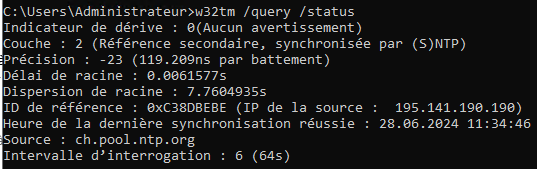
5. **Vérifier la configuration :**
    
    
    - Pour vérifier que votre serveur est correctement configuré pour utiliser le serveur NTP, vous pouvez utiliser la commande : <div class="dark bg-gray-950 rounded-md border-[0.5px] border-token-border-medium"><div class="flex items-center relative text-token-text-secondary bg-token-main-surface-secondary px-4 py-2 text-xs font-sans justify-between rounded-t-md">sh <div class="flex items-center"><span class="" data-state="closed"><button class="flex gap-1 items-center"><svg class="icon-sm" fill="none" height="24" viewbox="0 0 24 24" width="24" xmlns="http://www.w3.org/2000/svg"></svg>Copier le code</button></span></div></div><div class="overflow-y-auto p-4" dir="ltr">`w32tm /query /status`</div><div class="overflow-y-auto p-4" dir="ltr">  
        </div></div>[![image.png](https://know.app.slaunay.com/uploads/images/gallery/2024-06/scaled-1680-/wcsw9vhY3GngzzDu-image.png)](https://know.app.slaunay.com/uploads/images/gallery/2024-06/wcsw9vhY3GngzzDu-image.png)
        
        <div class="dark bg-gray-950 rounded-md border-[0.5px] border-token-border-medium"><div class="overflow-y-auto p-4" dir="ltr">  
        </div><div class="overflow-y-auto p-4" dir="ltr">  
        </div></div>

</div></div></div></div></div></div>[![image.png](https://know.app.slaunay.com/uploads/images/gallery/2024-06/scaled-1680-/4WAWoN6Q36lhrSRp-image.png)](https://know.app.slaunay.com/uploads/images/gallery/2024-06/4WAWoN6Q36lhrSRp-image.png)

# Configuration de Docker pour l'accès distant via TLS (port 2376)

### **Vérification et préparation des certificats TLS**

Avant de commencer, assure-toi que les certificats TLS sont bien disponibles sur le serveur.  
**Emplacement attendu des fichiers TLS** :

```bash
/[DOSSIER]/ca.pem
/[DOSSIER]/server-cert.pem
/[DOSSIER]/server-key.pem
```

**Vérification des fichiers TLS :**

```bash
ls -l /[DOSSIER]/
```

Si les fichiers sont absents, il faudra les régénérer avant de continuer.

### **Modification de /etc/docker/daemon.json**

**Objectif :** Supprimer les paramètres TLS de ce fichier pour éviter les conflits avec systemd.

**Édition du fichier :**

```bash
sudo nano /etc/docker/daemon.json
```

**Contenu correct :**

```json
{
    "runtimes": {
        "nvidia": {
            "path": "nvidia-container-runtime",
            "runtimeArgs": []
        }
    }
}
```

**Ne pas inclure les paramètres TLS ici**, car ils seront gérés via systemd.

**Enregistrer et quitter** : `CTRL + X`, puis `Y`, puis `Entrée`.

### **Configuration de systemd pour Docker**

**Objectif :** Modifier le service Docker pour qu'il écoute sur le port 2376 avec TLS.

**Créer le dossier de configuration systemd s'il n'existe pas :**

```bash
sudo mkdir -p /etc/systemd/system/docker.service.d
```

**Édition du fichier override.conf**

```bash
sudo nano /etc/systemd/system/docker.service.d/override.conf
```

**Contenu correct :**

```json
[Service]
ExecStart=
ExecStart=/usr/bin/dockerd --host=fd:// --host=tcp://0.0.0.0:2376 --tlsverify --tlscacert=/[DOSSIER]/ca.pem --tlscert=/[DOSSIER]/server-cert.pem --tlskey=/[DOSSIER]/server-key.pem
```

**Enregistrer et quitter** : `CTRL + X`, puis `Y`, puis `Entrée`.

### **Appliquer les changements et redémarrer Docker**

****Recharger systemd :****

```bash
sudo systemctl daemon-reload
```

**Redémarrer Docker :**

```bash
sudo systemctl restart docker
```

**Vérifier si Docker tourne bien :**

```bash
sudo systemctl status docker --no-pager -l
```

**Vérifier si Docker écoute sur le port 2376 :**

```bash
sudo netstat -tulnp | grep docker
```

### **Tester l'accès distant depuis un autre serveur (ex: Kuma)**

**Sur le serveur distant (Kuma), configure l'accès à Docker via TLS :**

```bash
export DOCKER_HOST=tcp://stream.home.slaunay.ch:2376
export DOCKER_TLS_VERIFY=1
export DOCKER_CERT_PATH=/kuma/stream.home.slaunay.ch
```